To allow you to quickly and easily switch between Stream Deck Profiles, a majority of our products now include a dedicated 'Profile Switcher' key. This key can be configured to load another aircraft, the Flight Panels Profile Switcher, an AeroLens Pro Profile or any other Stream Deck profile of your choice.
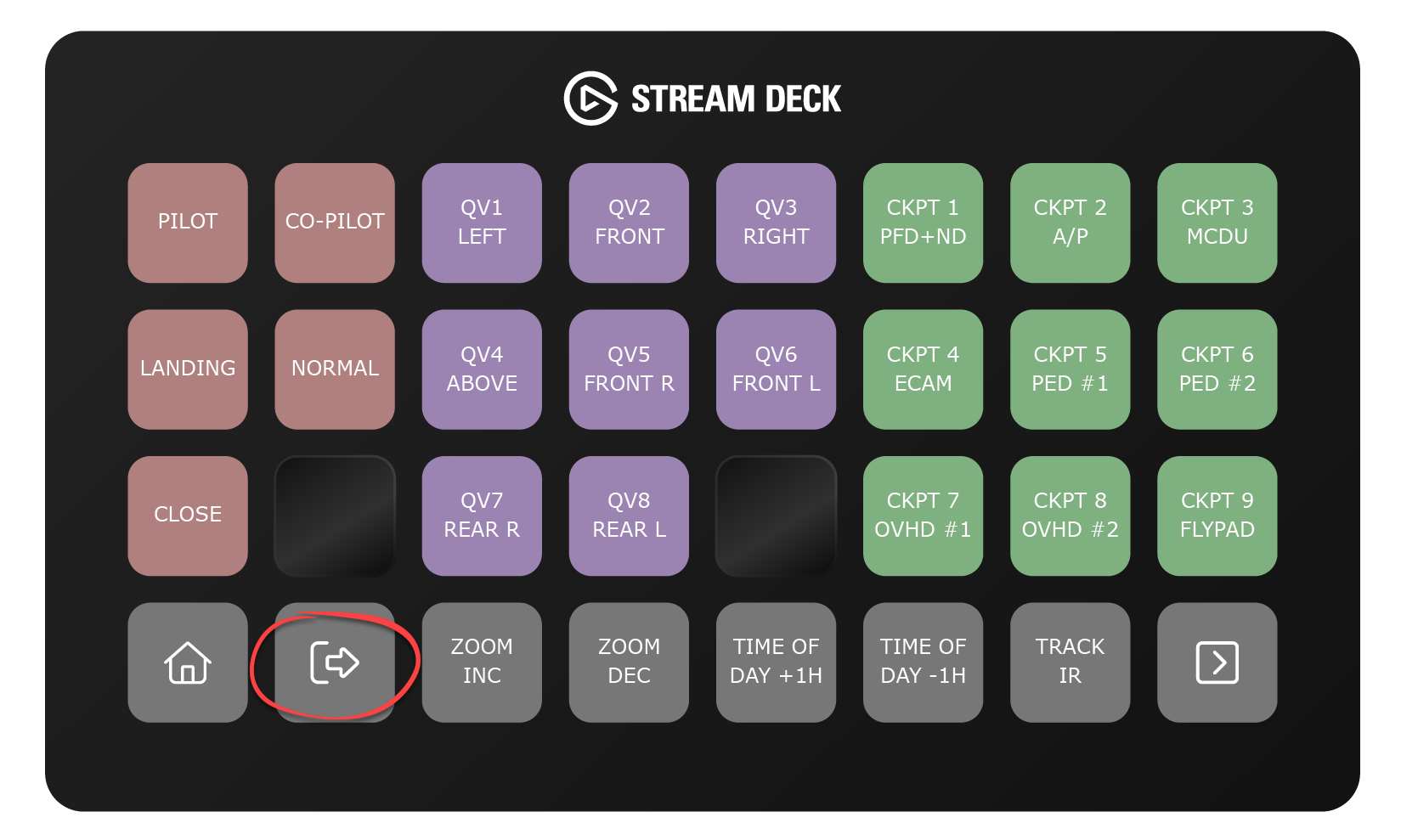
Button Configuration
- Launch the Stream Deck software and open the profile you wish to amend
- Locate the Profile Switcher button and click on it to open the inspector window
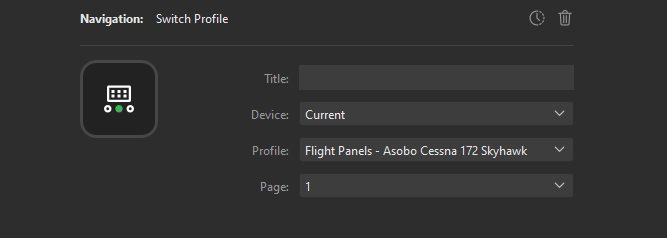
- Select your Stream Deck from the Device drop down (typically Current)
- Select the profile that you want to load from the Profile drop down
Example
Device: Stream Deck XL (Current)
Profile: Flight Panels - FlyByWire - Airbus A32NX - Series

In the above example, pressing the dedicated profile switcher button would load the FlyByWire Airbus A32NX Series profile on the current device. If you have multiple devices, simply select the appropriate device from the drop down.
Flight Panels Profile Switcher
The Flight Panels Profile Switcher is designed to make switching between aircraft profiles incredibly easy and efficient. With just one click, you can rapidly switch between separate profile settings, enabling a smooth and seamless transition.
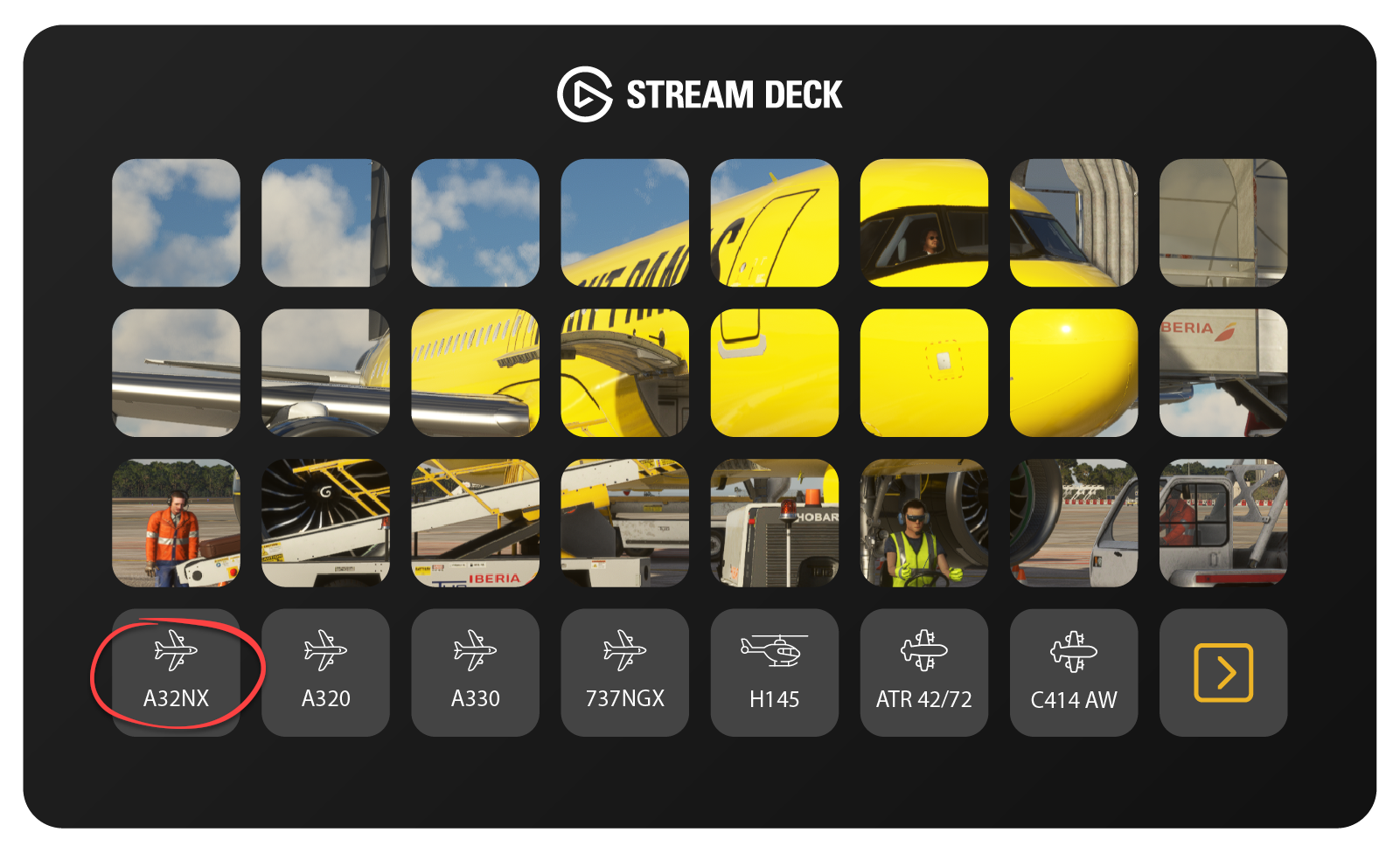
Configuring the Profile Switcher
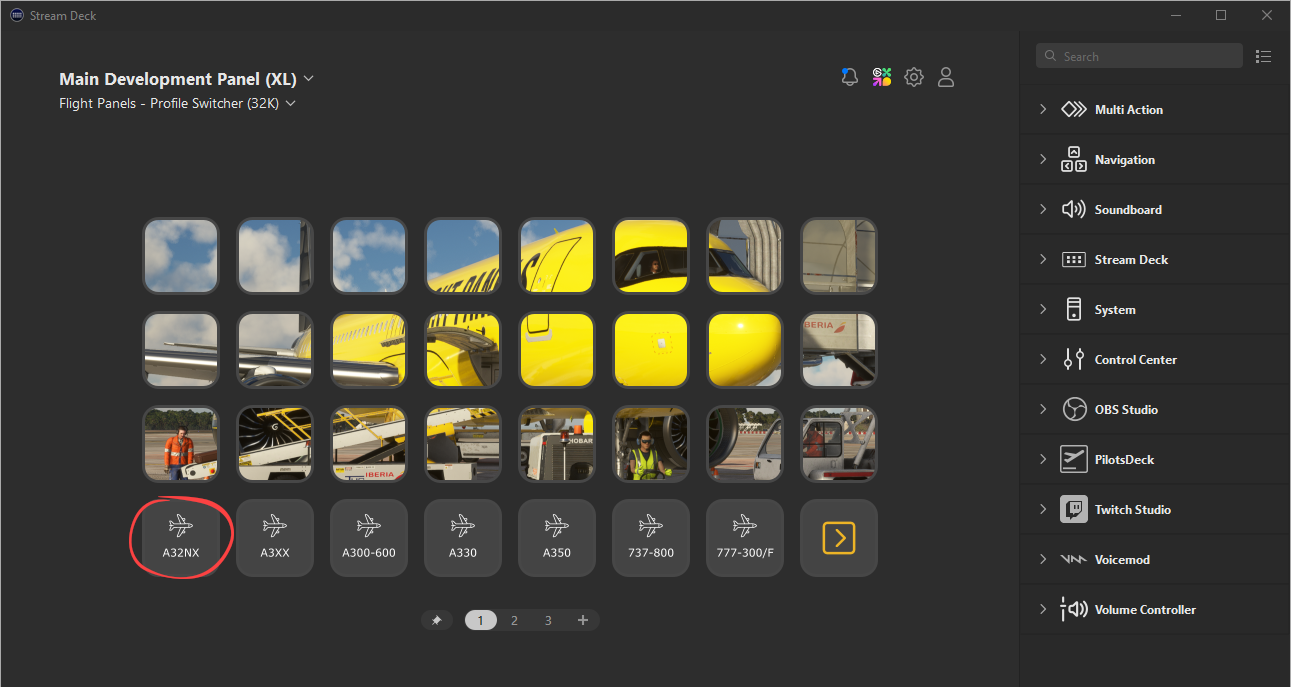
- Launch the Stream Deck App and load the Flight Panels Profile Switcher
- Click on one of the Profile Switcher buttons to open the key inspector window
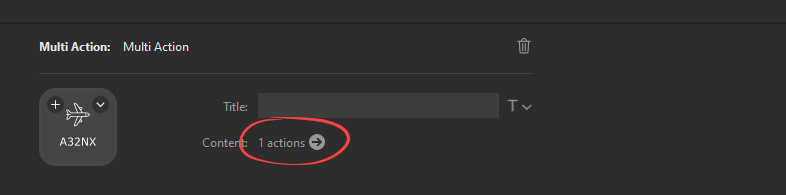
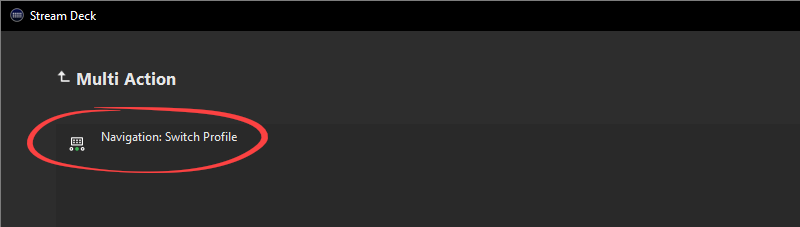
- Click on the Circular Icon under the title field to configure the button
- Select the first action, named Navigation: Switch Profile
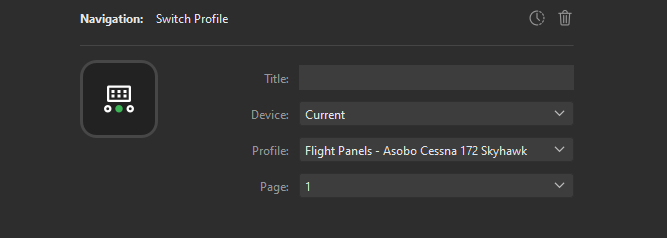
- Select the Stream Deck that you want to control from the Device dropdown
- Select the Profile that you would like to load on the target device
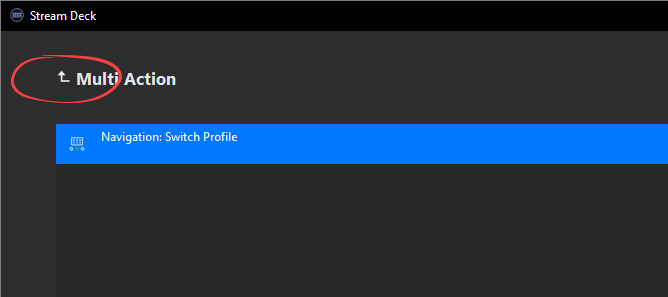
- Click on the Return Arrow under the "Multi Action" title at the top
- Repeat this process for each button as required
Controlling Multiple Devices
- Launch the Stream Deck App and load the Flight Panels Profile Switcher
- Click on one of the Profile Switcher buttons to open the key inspector window
- Click on the Circular Icon under the title field to configure the button
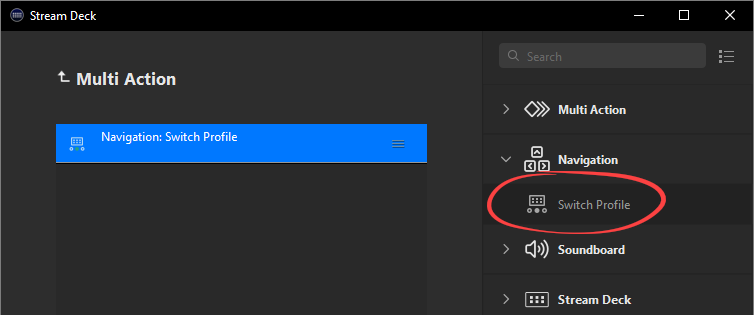
- Drag & drop the Switch Profile action from the right hand navigation bar (located under the Navigation category) below the existing Navigation: Switch Profile action, on the left hand side of the application window.
- Select the new action, named Navigation: Switch Profile
- Select the Stream Deck that you want to control from the Device dropdown
- Select the Profile that you would like to load on the target device
- Click on the Return Arrow under the "Multi Action" title at the top
- Repeat this process to control additional devices

Was this article helpful?
That’s Great!
Thank you for your feedback
Sorry! We couldn't be helpful
Thank you for your feedback
Feedback sent
We appreciate your effort and will try to fix the article